...

Space Shooter Game

In this lesson, we will walk through the Pygame library and setup the foundation for the Pygame project and eventually build a Space Shooter game.

Pygame Library

What is Pygame library?

Pygame is a game library - a set of tools to help programmers make games. Some of these things are:

  • Graphics and animation
  • Sound (including music)
  • Control (keyboard, mouse, gamepad, etc.)
  • Game Loop

    At the heart of every game is a loop, which we call the Game Loop. This loop is constantly running, over and over again, doing all the things that are needed to make the game work. Each time the game goes through this loop is called a frame.

    The main program loop will contain 3 main sections:

  • Capturing Events: Used to constantly listen to user inputs and react to these. It could be when the user uses the keyboard or the mouse.
  • Implementing the Game Logic: What happens when the game is running? Are cars moving forward, aliens falling from the sky, ghosts chasing you, balloons flying etc.
  • Refreshing the screen by redrawing the stage.
  • The main program loop will also use a frame rate to decide how often should the program complete the loop (refresh the screen) per second. To implement this we will use the clock object from the pygame library. The main program loop will use a timer to decide how many times it will be executed per second.
    Next
    Step 1: Let's start coding
  • In your logged-in trinket account click on New Trinket -> Pygame

  • Or Open the blank Python template trinket: Open New.

  • Prev Next
    Step 2: Importing and Initialising the Pygame library
  • The first step is to import the Pygame library. Place import statements at the top of your code.
  • WE also need to import pre-defined libraty file and settings
  • Next, initialise it with init()
  • Type the code as follows:

    Prev Next
    Step 3:Building a Pygame Template

    To begin with, we're going to make a simple pygame program that does nothing but open a window and run a game loop.

  • We are going to define the screen to open a game window
  • Set a few variables for our game options
  • Define the Game main loop.
  • Here is our game loop, which is a while loop controlled by the variable running. If we ever want the game to end, we just have to set running to False and the loop will end.

    Prev Next
    Step 4: Add Background and load images to the game

    This would work for background color or any other pictures that you want to display on the screen.

  • Before the main program loop we load the pictures
  • In your main program loop we display them
  • Prev Next
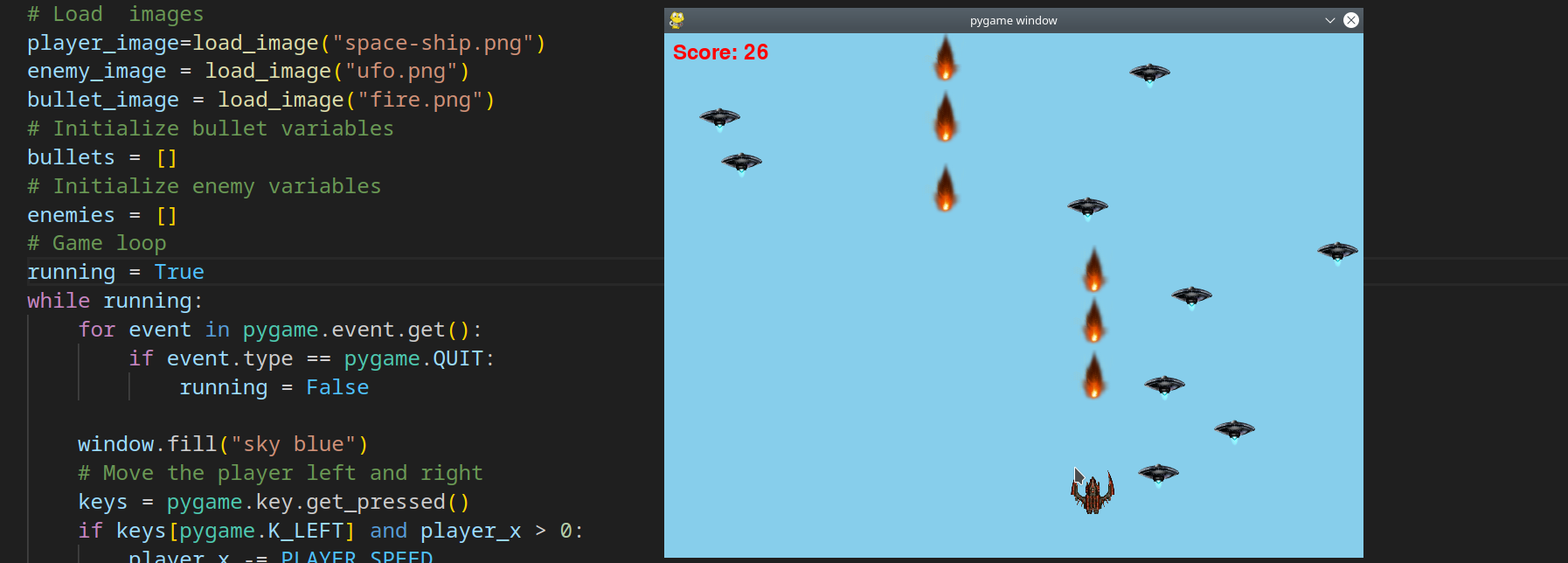
    Step 5: Add Game Logic

    Next in the game logic scetion we will add following :

  • Logic to move space shipp right and left
  • Logic to shoot bollets when Space key is pressed
  • Logic to move bullets up and remove them when they go off the screen
  • Add enemies to the screen and define the collision point with bullets
  • Full code so far should be following:

    Prev Next
    Step 6: Add Game Score

    To add and display score we will use a pre-defined function display_score() Every time bullet hot he enemy we inscrease score by 1

    Prev Next
    Step 7: Complete and Share

    Save and Submit your project

    Don't forget to save your work. Click the Save button or Remix to save to your account.

    The gamess final code should look like this:

    Prev Next
    Step 8: Submit and Share

    Submit your final project


    Copy your Trinket Url

  • Click Share->Link
  • Copy the link to share your code
  • Paste link into the field
  • Prev