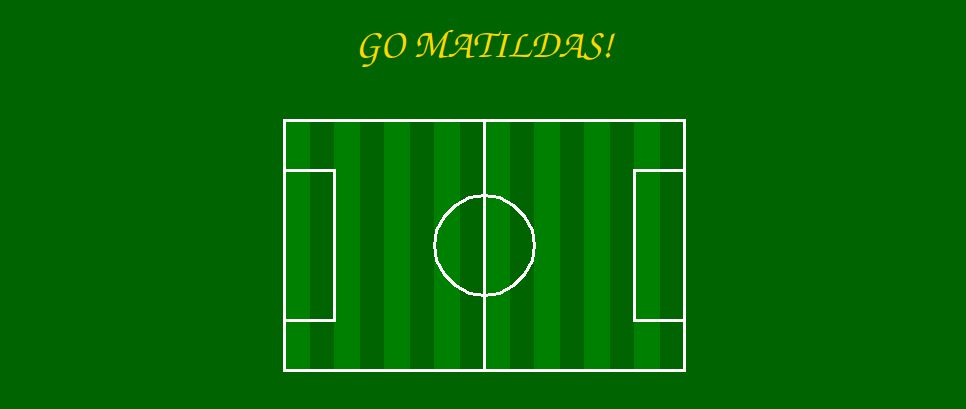
In this class, students will learn how to draw a soccet field using the Turtle graphics library. Through this project, students will have the opportunity understand how to create a reusable function to draw a rectangle and use it in multiple occasions. The lesson will cover the following topics:
The first step is to import the Turtle module. Place import statements at the top of your code. Next, define the screen and specify its dimension and set the background colour. done() command must be the last statement in a turtle graphics program. Type the code as follows:
We define a function named rectangle that takes four parameters:x, y, w, and h. These parameters represent the x and y coordinates of the bottom-left corner of the rectangle, as well as its width w and height h. The function's purpose is to draw a rectangle starting from the specified coordinates and with the specified dimensions.
We will use a for loop to draw a total of 8 grass stripes. We'll start at the initial position x and y (which represent the bottom-left corner of the first stripe), and we'll draw a rectangle for each stripe using the rectangle function. After each stripe, we'll move the starting position x by 50 pixels to the right to create the next stripe.
This part of the code is responsible for drawing the outer boundary lines of the soccer field. It uses the rectangle function that we defined earlier to draw a rectangle that outlines the entire field.
Draw the middle line using the goto functions. After drawing the middle line, add the following code to draw a circle at the centre of the field:
The write function to display the text message "GO MATILDAS!" on the screen.
You have completed this project.