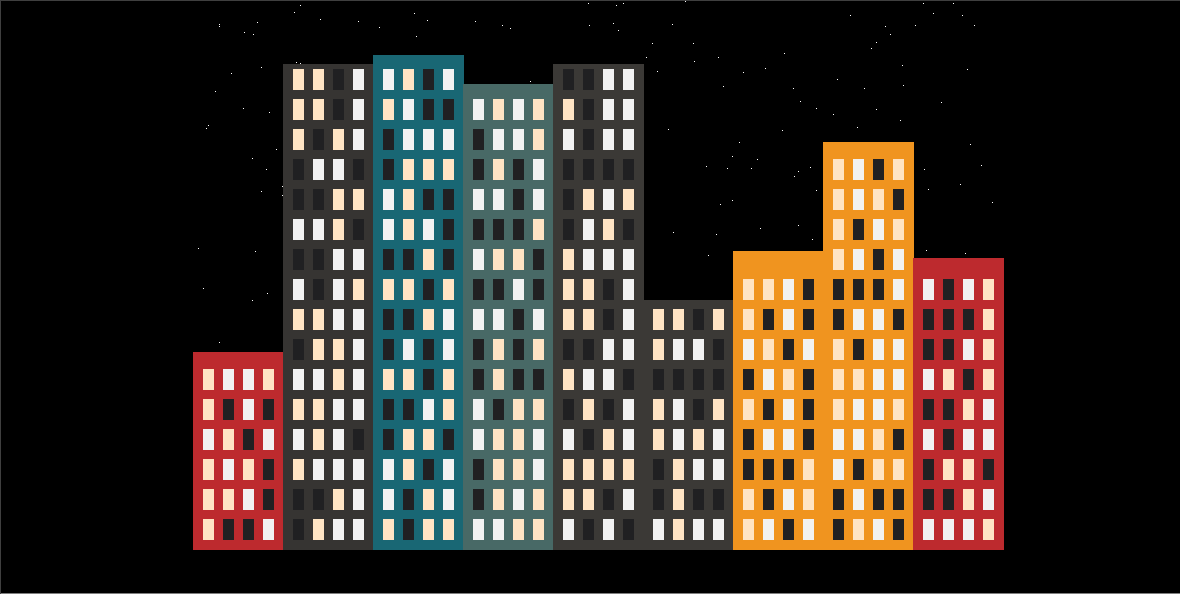
In this class, students will learn how to draw a Night Town using the Turtle graphics library. Through this project, students will have the opportunity understand how to create a reusable function to draw a rectangle and use it in multiple occasions. The lesson will cover the following topics:
The first step is to import the Turtle module. Place import statements at the top of your code. Next, define the screen and specify its dimensions, and set the background colour to black. The done() command should be the last statement in a Turtle graphics program. Type the code as follows:
Add the following code to add stars in random positions to simulate a night sky:
We define a function named rectangle that takes five parameters:x, y, w, h, and col . These parameters represent the x and y coordinates of the bottom-left corner of the rectangle, as well as its width w and height h. The function's purpose is to draw a rectangle starting from the specified coordinates and with the specified dimensions. col is the colour of the rectangle.
We will use a while loop to calculate the number of buildings we can fit into our screen size. We'll draw a rectangle for each building using the rectangle function and select a random colour and building height.
Next, we will draw windows. We will use a for loop to calculate the number of windows we can fit into each building.
You have completed this project.