...

Game Development Coding Camp

As part of this project you will learn:

Setup Development Environment

Install Python:

  • Visit the official Python website at https://www.python.org
  • Download the latest version of Python for your operating system (Windows, macOS, or Linux).
  • Run the installer and follow the instructions to install Python.
  • Install Visual Studio Code (VS Code):

  • Visit the official VS Code website at https://code.visualstudio.com/.
  • Download the installer for your operating system.
  • Run the installer and follow the instructions to install VS Code.
  • You can follow a video instructions:

    Windows Installation Guide:

    Mac Installation Guide:

    Next
    Setup Project Workspace

    Set up a new project folder:

  • Create a new folder on your computer where you'll store your game project.
  • Give it a descriptive name like "coding-camp" or anything you prefer.
  • Open VS Code.
  • Click on "File" in the top menu and select "Open Folder".
  • Navigate to the project folder you created and select it.
  • Click on "Open" to open the project folder in VS Code.
  • Create new Python file and test it

  • Create a new Python file in your project folder, name it game.py
  • Inside the file type following print statement and run code
  •                     
                        print("hello")


    You should see the output of print statement in the terminal, see the picture

    Prev Next
    Please ensure all required fields are filled in
    Install Ursina library
    Check if you have pip3 installed by running the command:

    pip --version or pip3 --version


    If pip3 is not installed, you can install it by running the command:


                            curl https://bootstrap.pypa.io/get-pip.py -o get-pip.py
                            cd ~/Downloads
                            python get-pip.py
                            pip --version


    Install Ursina library:

    In the terminal run the following command:
                            
                                
                                    pip install ursina
                                
                                or 
                                
                                    pip3 install ursina


    Prev Next
    Please ensure all required fields are filled in
    Test Ursina Installation
  • Open VS Code game.py file and type following code
  • If everything is set up correctly, a window should appear, indicating that Ursina is working.

    Prev Next
    Please ensure all required fields are filled in
    Python Programming Language
    Computer Programming or Coding is the process of writing instructions for a computer to follow. It's like a recipe, but for a computer. The instructions tell the computer what to do and in what order to do it.

    Those sets of instructions that the computer follows to do something are written in a Programming Language.

    We will be learning a text-based programming language called Python.

    Why Python?

  • It's perfect for beginners.
  • It's easy to setup.
  • It's powerful
  • It's can be used for graphics, animations, web applications, games, etc.
  • Python Syntax

    Python has a simple syntax similar to the English language. Understanding the basic symbols in programming is important. We will frequently come across these symbols in our coding classes.


    Prev Next
    Please ensure all required fields are filled in
    Python Syntax

    Let's review the python syntax

    Python syntax is the rules we follow when we write code in Python. It helps us communicate with the computer and tell it what to do.

    There are a few special things to remember:

    Variables

  • In Python, a variable is like a container or a box that can hold different types of information.
  • It has a name and a value.
  • We can think of it as a way to store and remember things.

    The Colon

  • The colon : is a special symbol that tells Python that something important is coming next.
  • We use the colon before starting a for or while loop or if/else statements.
  • It's like saying, "Here comes a block of code!"
  • Quotes "" or ''

  • Quotes are used to represent text in Python.
  • They always come in pairs.
  • We use quotes to tell the computer that something is a piece of text, like a message or a name.
  • In print() statements, we put the text inside quotes to tell Python to show that message on the screen.

    Brackets (), []

  • Brackets always come in pairs.
  • We use round brackets () in commands like print() or getting input().
  • For example:
     print("Hello")
    or
    input("What's your name?")
  • Square brackets [] are used to define lists or arrays.
  • They help us keep things organised, like putting objects in a box.
  • Indentation

  • Indentation is like the way we organise our toys or books.
  • It helps the computer understand which lines of code belong together.
  • In Python, we use spaces or tabs to indent our code.
  • When we start a new block of code, like inside a loop or a function, we indent the code by adding spaces or tabs at the beginning of each line. It's like giving those lines a special place.
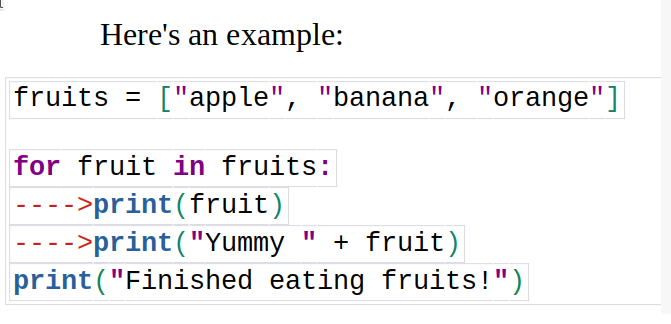
    We should set indentation:

  • In loops: When we have a loop, like a for loop or a while loop
  • In conditional statements: When we have an if statement or an else statement.
  • We shift code after using a colon : in loops and conditional statements
  • Prev Next
    Please ensure all required fields are filled in
    Minecraft Quiz Minecraft Quiz

    History of Minecraft:

    It's time to put your Minecraft knowledge to the test. We have an exciting quiz for you!

  • For Quiz click the following button:
  • Minecraft Quiz

    Prev Next
    Please ensure all required fields are filled in
    Back to Coding

    Add Game Exit functionality

  • Open game.py file and continue our coding
  • Next, we will add exit functionality
  • We import the sys module, which allows us to use the exit() function to gracefully exit the game. We then check if the Esc key is being held down using held_keys['escape']in the update() function. If the Esc key is pressed, the sys.exit() function is called, terminating the game and closing the window.
    Now, when you press the Esc key while running the game, it will exit and close the game window.

    Add First person controller

    A first-person controller is like a magical tool that lets you become a character inside a video game. It helps you control what the character does and where it goes. You know how you use the arrow keys or buttons on a game controller to move a character around in a game? Well, the first-person controller lets you do that.

    Now, run the game and look around !

    Prev Next
    Please ensure all required fields are filled in
    Add a Block Class

    Add Block Class

    The next step is to create a block, known as the Block Class, that will serve as the building block for our game world. This block will have properties such as position and texture, which will determine where it is placed and how it looks.
    To do this, we will add a new class to our code. A class is like a template that allows us to create objects with specific properties and behaviors. In this case, our class will define how the blocks in our game will be created. Let's add the Block class to our code:

    Add multiple blocks to create a land

    So, using the loops, we can create many blocks and arranged them in a grid-like pattern to form the land. It's like building the land block by block, just as if you were putting together small square puzzle pieces to create a bigger picture

    Add following piese of code to create a land:

    Complete Code so far should look like this:

    Prev Next
    Please ensure all required fields are filled in
    Add More textures

    Let's add more textures to your game

    Download following textures:

  • Create texture folder inside your coding-camp and place all downloaded images there
  • Click on the links below to download the images:


    Next, add the code as follows:

    Prev Next
    Please ensure all required fields are filled in
    Add and Remove new Block

    Next we will add functionality to add new block on left mouse clikc and remove on the right mouse clikc

    In order to do it add input method with following code inside the Block class:

    Run and test your program

    Prev Next
    Please ensure all required fields are filled in
    Add Different types of Block

    Next we will add functionality to diffewrent types of blocks

  • We will add a new variable to give a default block selection
  • block_pick = 1
  • Next, we will be able to make a selection on holding a number keys, edit your update() function like this:
  • One more change is requied in input() function, add code like this:
  • Run and test your program

    Prev Next
    Please ensure all required fields are filled in
    Final Game Code

    Our final game code should be like this:

    Well Done!

    Prev Next
    Please ensure all required fields are filled in
    Want More?: Try a Quiz Programming Language Quiz

    It's time to put your programming language knowledge to the test. We have an exciting quiz for you! Below is a list of programming language names, some of which are real, and others are fake. Your task is to distinguish between them.

  • For Quiz click the following button:
  • Programming Language Quiz

    Prev
    Please ensure all required fields are filled in